.png?width=100&height=75&name=Untitled%20design(1).png)
Summery
Programme Managers can duplicate existing mentoring programmes, create programmes in Draft mode, activate programmes when they're ready to launch, and close completed programmes whilst preserving historical data.
This makes it easy to launch new programme cohorts without having to rebuild programme settings from scratch.
Understanding Programme Statuses
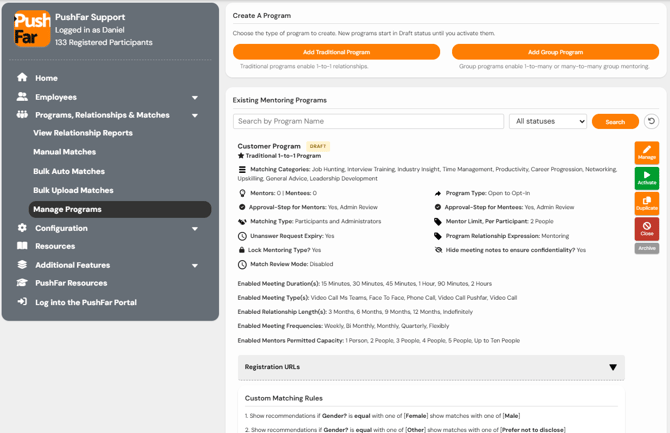
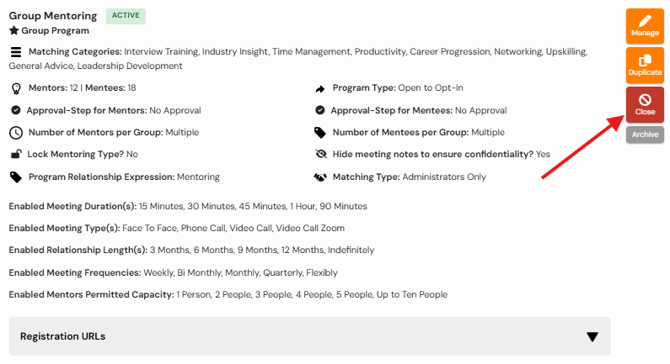
Every mentoring programme has one of three statuses. This is viable next to the title of the program for reference
Draft

Draft programmes are still being configured and are not visible to participants.
When a programme is in Draft status:
-
- It cannot be discovered through programme browsing.
- Participants cannot self-register.
- Programme settings can still be edited.
- Programme Managers can invite or enrol users for testing purposes.
- Registration links remain active for testing.
Active

Active programmes are live and available to participants.
When a programme is Active:
-
- Participants can join the programme (depending on registration settings).
- Matching can take place.
- Mentoring relationships can be created and managed.
- Automated programme processes continue to run.
Closed

Closed programmes are no longer available to participants but retain all programme history.
When a programme is Closed:
-
- New participants cannot join.
- Existing members can no longer access the programme.
- Historical relationships are retained.
- Membership records remain available.
- Programme Managers can still access programme data from the Company Dashboard.
Note: Closing a programme is different from archiving a programme. Closing preserves programme history, whereas archiving follows the standard archive and deletion process.
How to Duplicate a Programme
Duplicating a programme copies its structure and configuration, allowing you to quickly create a new cohort or programme cycle.
To duplicate a programme:
-
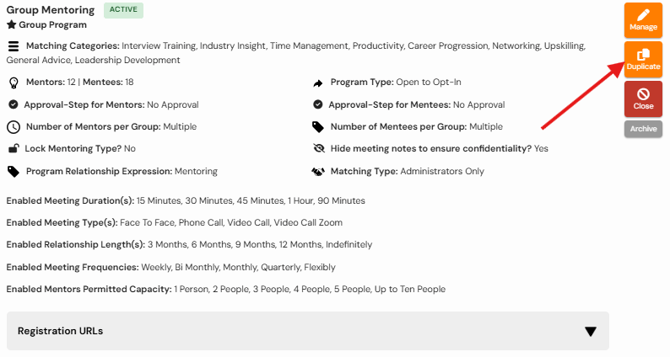
- Navigate to Company Dashboard > Programs, Relationships & Matches > Manage Programs.
- Locate the programme you would like to copy.
- Select Duplicate Programme.
- Enter a name for the new programme.
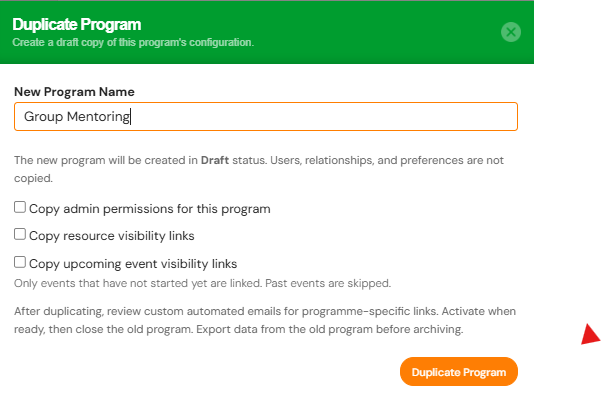
- Choose any optional items you would like to copy.
- Select Duplicate.
The new programme will be created in Draft status.
What Information is Copied?
By default, programme duplication copies:
- Programme settings and configuration
- Matching categories
- Matching rules
- Registration questions
- Programme privacy notice
- Feedback settings and questions
- Custom automated programme emails
What is Not Copied?
The following information is never copied:
- Programme participants
- Registration responses
- Mentoring relationships
- Group mentoring relationships
- Meetings
- Feedback submissions
- Historical programme activity
This ensures each new programme starts with a clean participant database.
Optional Items
When duplicating a programme, you can also choose to copy:
- Staff permissions
- Resource links
- Event links
These options are disabled by default and must be selected during duplication.
Before Activating a Duplicated Programme
Before launching a newly duplicated programme, we recommend reviewing:
- Automated emails
- Welcome messages
- Programme descriptions
- Resource links
- Event links
- Any programme-specific content
Duplicated content is copied exactly as it appears in the original programme and may contain outdated references.
Activating a Draft Programme
Once configuration is complete, you can activate the programme.
To activate a programme:
- Navigate to Company Dashboard > Programs, Relationships & Matches > Manage Programs.
- Locate the Draft programme.
- Select Activate Programme.
- Confirm the activation.
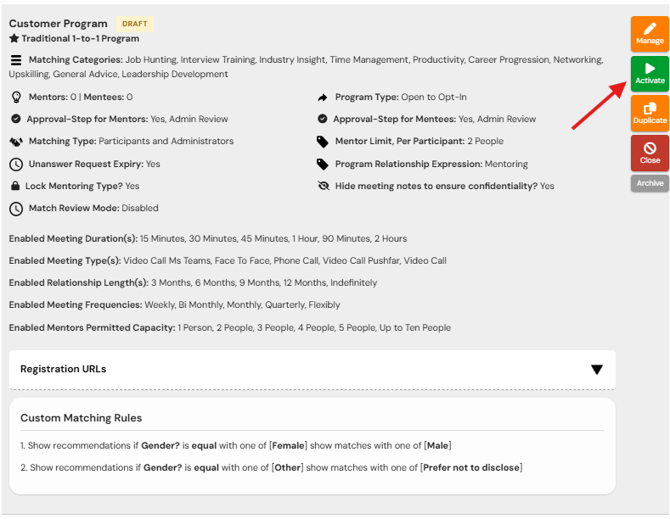
The programme will immediately become available based on its registration and access settings.
Closing a Programme
Closing a programme retires it whilst keeping historical data available for reporting and auditing purposes.
To close a programme:
- Navigate to Company Dashboard > Programs, Relationships & Matches > Manage Programs.
- Select the programme you wish to close.
- Select Close Programme.
- Review any active relationship warnings.
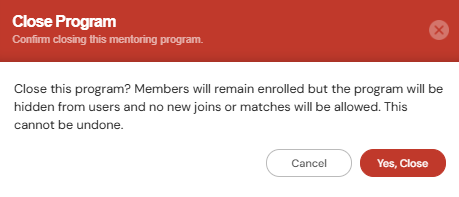
- Confirm the action.
Closing Programmes with Active Relationships
If active mentoring relationships exist, PushFar will ask you how you would like to proceed.
You can either:
Cancel
Leave the programme active and make no changes.
End All Active Relationships and Close
This option:
-
- Ends all active mentoring relationships within the programme.
- Retains historical relationship data.
- Triggers any configured end-of-relationship feedback processes.
- Closes the programme.
Important: This action cannot be undone.
What Happens to Existing Programme Links?
If someone attempts to access a closed programme using an existing registration or programme link, they will be informed that the programme is no longer available and should contact the programme administrator for further information.
The message displayed will be:
This programme is now closed. Please contact the programme administrator for more information.
Closing vs Archiving
| Status | Members Retained | Historical Data Retained | Visible to Participants |
|---|---|---|---|
| Draft | Yes | Yes | No |
| Active | Yes | Yes | Yes |
| Closed | Yes | Yes | No |
| Archived | No | Follows archive behaviour | No |
Closing a programme is recommended when a programme has concluded but reporting, membership history and relationship data may still be required.
Archiving should only be used when you are ready to remove programme participation records in line with your organisation's data retention processes.
Recommended Workflow for Annual Programme Renewals
For most organisations, we recommend the following approach:
- Duplicate the existing programme.
- Update programme content and settings.
- Activate the new programme.
- Close the previous programme.
- Export any data required for reporting.
- Archive the previous programme when appropriate.
This allows you to launch new programme cohorts quickly whilst preserving historical programme data from previous years.
Need Further Help?
If you have any questions about duplicating, activating or closing mentoring programmes, please contact your internal Programme Manager or PushFar Support.
You can submit a support request using the Support option within PushFar or by contacting the PushFar Support team directly.
Our team will be happy to help with programme setup, programme renewals and any questions about managing programme lifecycles.